Busness Data
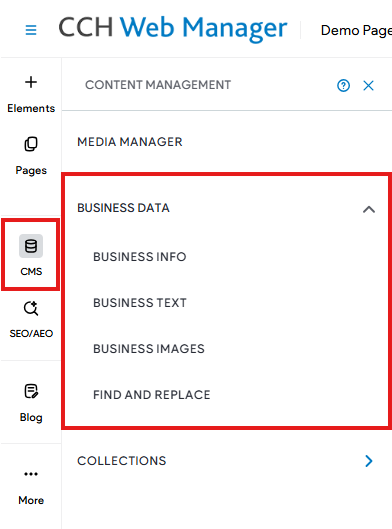
Within the editor’s Business Data section, you’ll find a range of options for handling different business-related resources. These include tools like Business Info, Business Text, Business Images, and a Find and Replace feature, all of which provide useful functionality for organising and updating content across your site. While helpful, using these tools is not required.
- Business Info - The Business Info area is where the core of the business's information is stored.
- Business Text - The Business Text section is used to store extra details about the business.
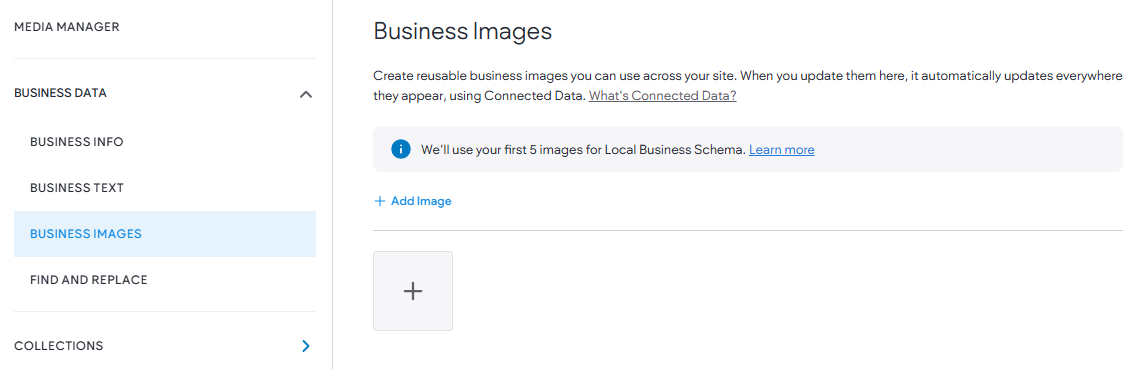
- Business Images -
Create reusable business images you can use across your site.
- Find and Replace - Streamline the process of adding and managing content on your site.
Business Info
The Business Info section is where key details about the business are maintained, such as the name, category, address, and contact number. This area also includes the option to connect and sync information with a Google Business Profile.
- In the left-side panel, click CMS.
- Click Business Data, then select Business Info.
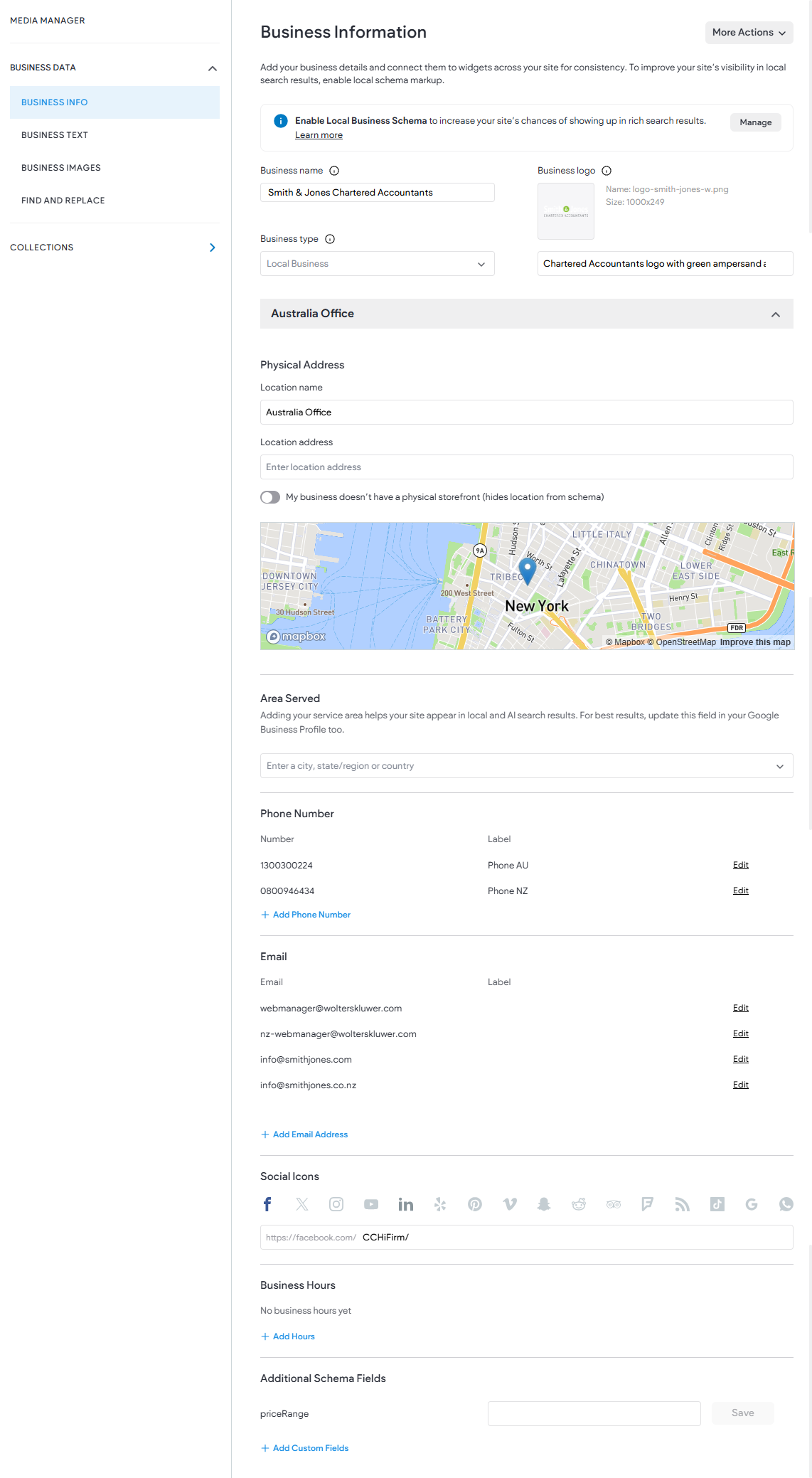
The following fields are available:
- Business name. Your company name.
- Business type. The category your business falls under.
- Business logo. Your company logo (uploaded for the header)
- Address. Additional locations can be added by clicking the More Actions button, then Add Another Location at the top.
- Physical Address.
- Location name. The office name, for example, Suburb Office.
- Location address. The address needs to be selected from the list that populates.
- Area Served. Enter the city, county, state, or region that you offer services in.
- Phone Number.
- Email.
- Social Icons. To add social accounts, click on the desired social icon.
- Business Hours.
- Additional Schema Fields. Increase your site’s chances of showing up in rich search results.
Business Text
Create reusable text blocks about your business that you can use across your site. It includes a set of predefined fields, along with the ability to create and customise additional fields as needed.
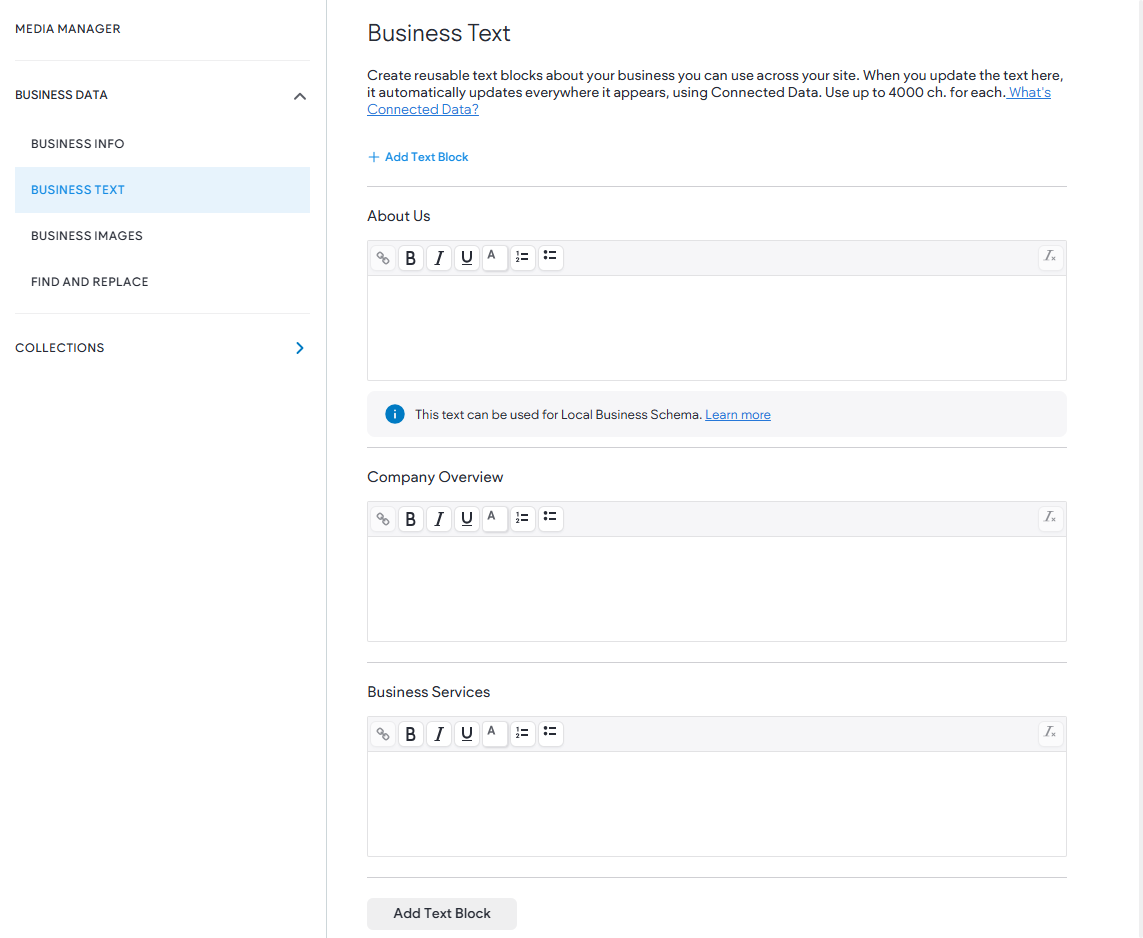
To add additional fields:
- In the side panel, click CMS.
- Click Business Data, then select Business Text.
- Click Add Text Block button.
Business Images
Business Images can be used to support Local Business Schema (using the first five images) and can also be linked to site elements through Connected Data. This helps maintain a single, centralised source for images, making it easier to keep visuals consistent and up to date without needing to manually update them across multiple pages.
Find and Replace
Find and Replace option is designed to streamline the process of adding and managing content on your site.