
Site Languages
Add and Manage Multiple Languages
Expand your website’s reach and connect with a wider audience by setting up a multi-language experience. This allows you to offer your content in different languages so visitors can engage in the way that feels most natural to them. When you add another language, a separate version of your site is created as a starting point for your translated content. You can translate everything yourself or use the built-in Google Translate option for a quicker approach. Whichever method you choose, it’s a good idea to review each page carefully before publishing to make sure everything reads clearly and accurately.
To add languages to your site:
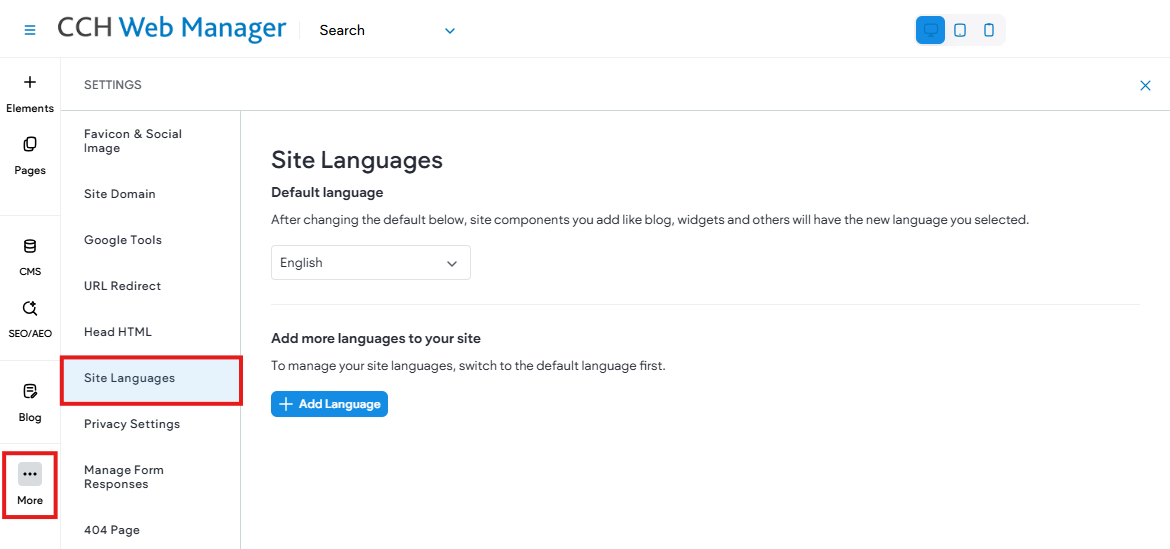
- In the side panel, click More > Settings, then click Site Languages. (If you already have additional languages enabled, click the flag icon on the top navigation bar and click Manage Languages.)
- Click + Add language, and choose one or more languages from the available options. Please note that some languages may have multiple country flags (e.g., Spanish).
- Click Done when finished.
Limitations and Considerations
The following features are currently not available in multi-language configurations:
- Blog Posts.
- Page SEO titles, descriptions, and keywords are not automatically translated, however you can manually translate them. These fields are important for SEO, so make sure you translate them manually for each language.
- Alt-text (on images).
- Dynamic business content. Text connected via Connect Data will not be automatically translated. To translate this text, disconnect the widgets from the Content Library and translate them manually.
- Custom widgets.
- Adding external links to navigation. Once you add a language to a site, you cannot add external links to the navigation.
Considerations
- The total number of pages a site with multiple languages can have is around 200, so if a site has 100 pages, only a single language can be added.
- Adding multiple languages to your site can enhance its accessibility, but it's crucial to be cautious about the quantity. Excessive languages may lead to the following:
- Performance Impact: Too many languages might slow down your site and affect user experience.
- Possible Errors: Such as editor error messages, page rendering issues, and/or broken links.
- Maintenance Challenges: Managing content for numerous languages can be time-consuming.
- The language flag cannot be changed directly. To use a different flag, you must delete the current language and add the language with the desired flag.
- By default, the multi-language feature uses Google Translate to automatically translate your site content into the new language. While this service is free, Google Translate may not always provide the most accurate translations. Therefore, it's important to review and edit the translated content on your site. If you prefer to manually translate your entire site, disable the Use automatic translation toggle when adding languages. Note that once languages are added, automatic translation cannot be undone.
- When translating content in Accordion and Tabs widgets, certain styles such as rich text are not preserved after being translated and need to be added again.
- Folders added to the Pages area after languages are enabled can not be translated. This includes languages you already have enabled and any languages you may add in the future.
- Hyperlinked text is translated, but the link is removed.