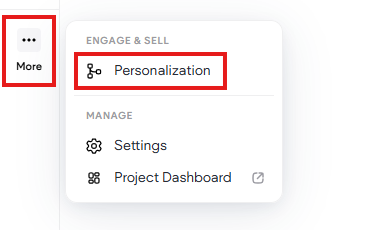
Create a Pop-up
Follow step-by-step instructions to create and customise/edit pop-up.
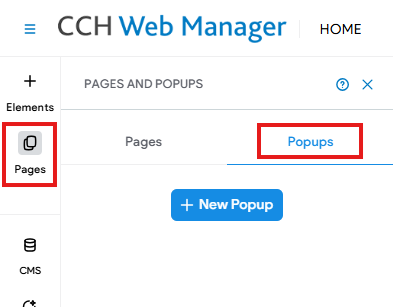
- In the side panel, click Pages.
- Click the Popups tab.
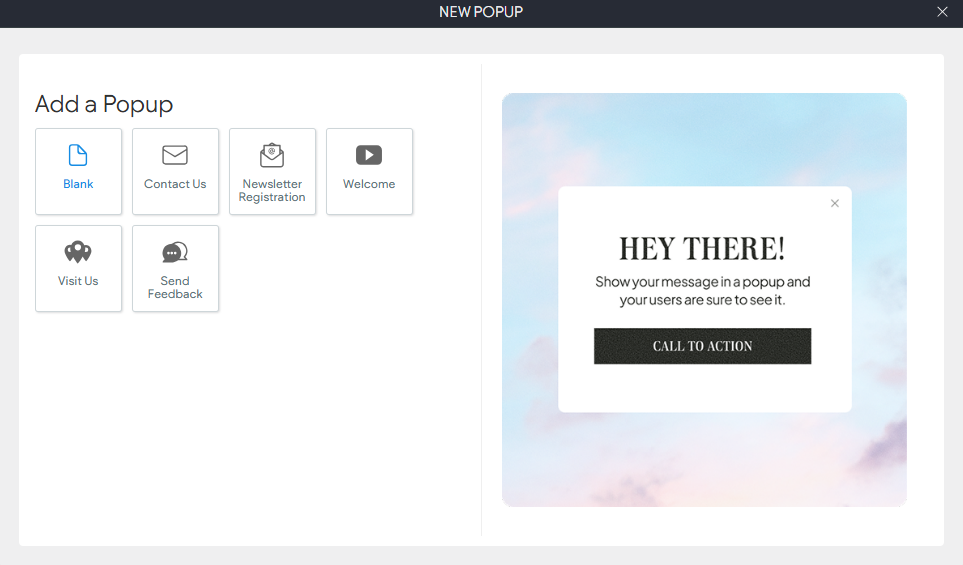
For this example, we will select Blank, but there are other pre-designed pop-ups you can use, or use as a template to modify.
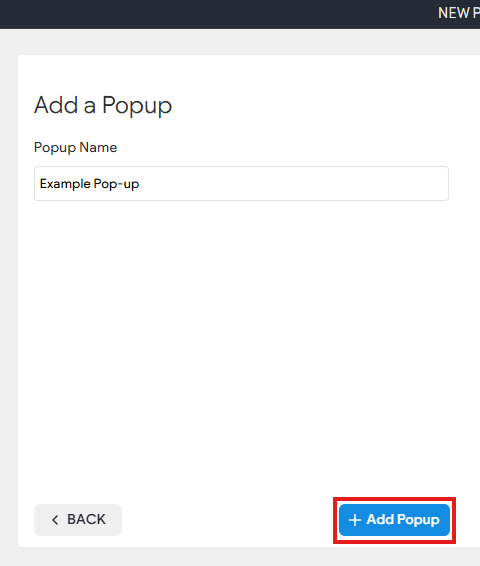
- Give the pop-up a Name
- Click + Add Popup
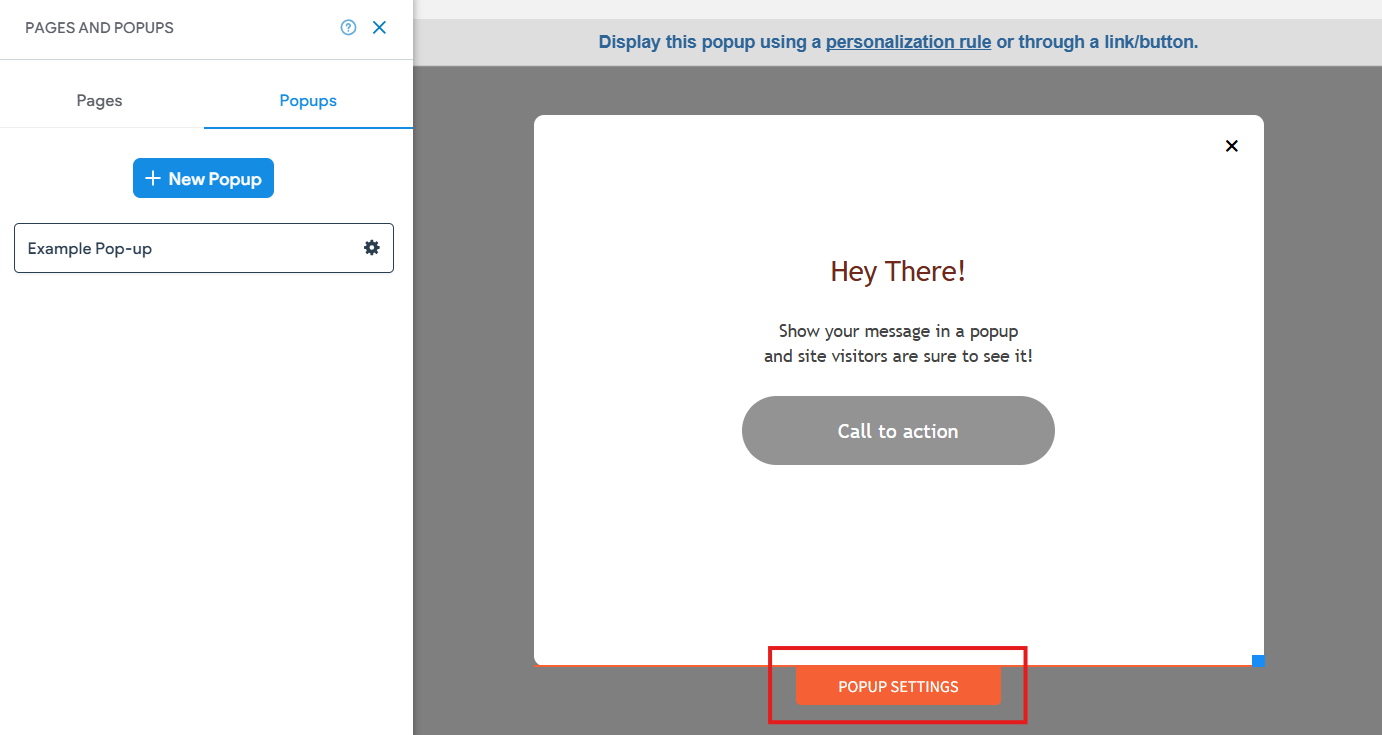
- Once completed, the new pop-up will appear under Pages > Popups
Editing the Pop-up
You can edit the elements by clicking directly on them. You can also drag/drop widgets onto the popup like you would on a normal page. Please see Adding and Arranging Content.
If you click the POPUP SETTINGS tab, you can resize the popup and change the background, font styles and overlay colour.
Activate the pop-up
Personalization Rule
To activate/trigger a pop-up, you need to create a Personalization Rule.
You can do this by either:
- Clicking the shortcut link in the popup management window (screenshot above)
- OR going to More on the left panel and selecting Personalization.
NOTE: If you do not see the Personalization option, please email webmanager@wolterskluwer.com to get it activated.