
Create Personalization Rule (Activate Pop-up)
Personalization Rules are used to activate/trigger a popup. Configure the required conditions, such as user actions, display timing, and other criteria, to determine when the popup is shown.
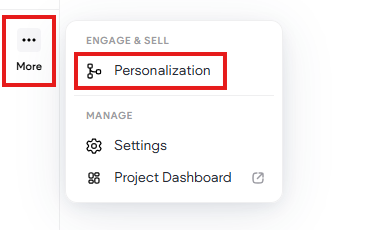
- Go to More in the left panel and click Personalization
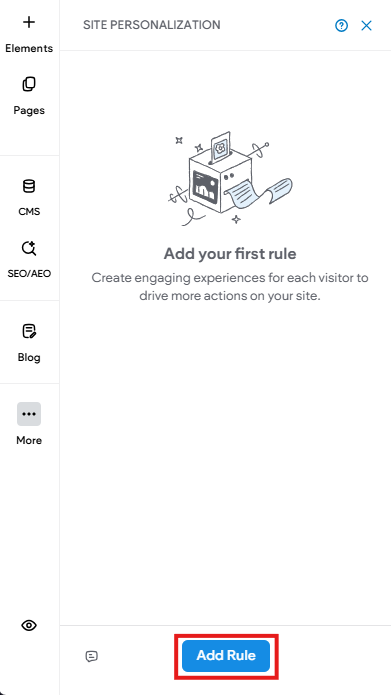
- Click the Add Rule button
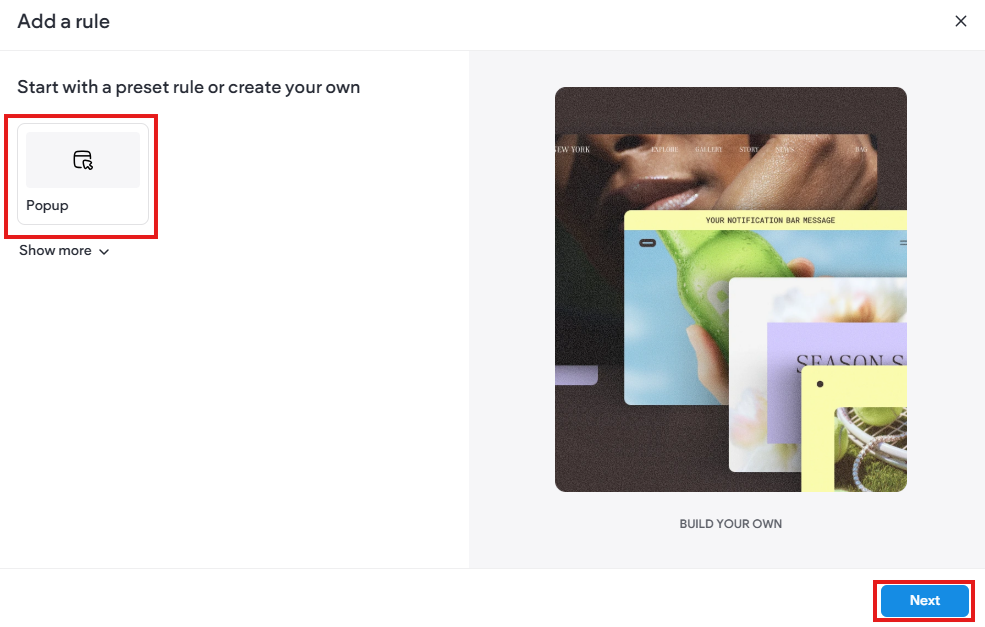
- To set up a Popup rule, select Popup from the Add Rule options
- Then click the Next button
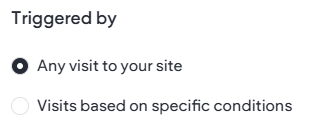
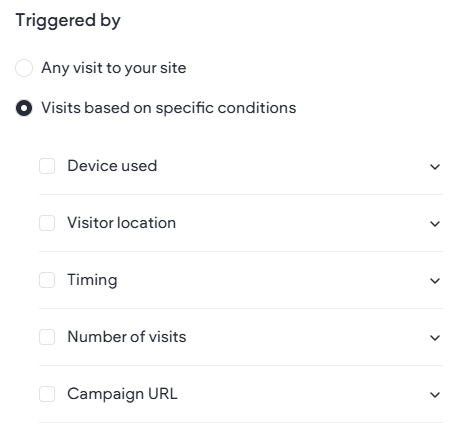
You will be given trigger options:
- Any visit to your site
- Visits based on specific conditions
- Device used. Will trigger depending on what device a user is using.
- Visitor location. Set the region or country the popup will show for.
- Timing. Set a start (or end) time/date for your popup.
- Number of visits. The number of times a user will see the popup.
- Campaign URL. Trigger the popup when coming from a specific URL
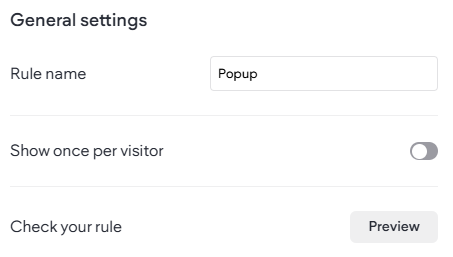
General settings.
- Rule name. Give your rule a name
- Show once per visitor. Set to only show once. Leave off if you have set this earlier in your trigger rules.
- Check your rule. Preview your popup.
Then click the Activate button or Save as a Draft if there are additional edits.
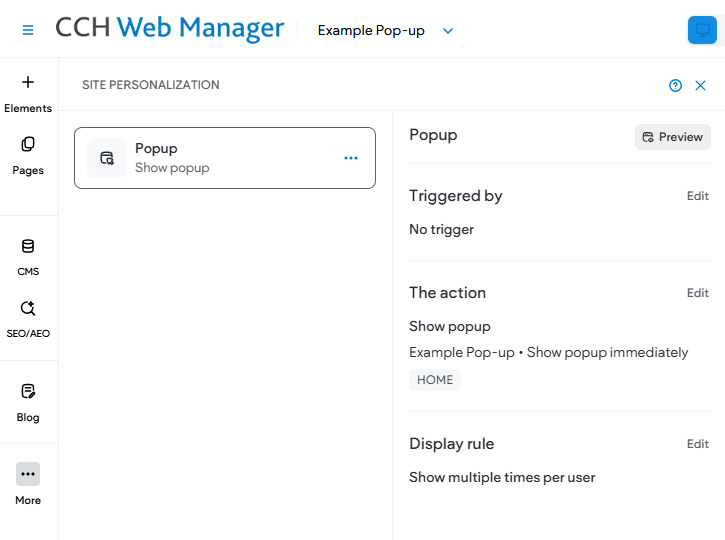
Once activated, you will see your new rule in the Site Personalization area.
You can edit individual settings on the right by clicking the Edit text.
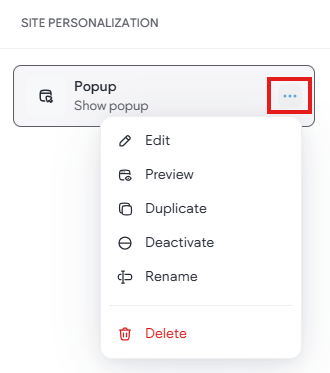
You can also click the three dots on the rule and edit, preview, duplicate, deactivate, rename and delete the rule.
Republish your site to make the popup live.