Breadcrumbs Widget
The Breadcrumbs widget helps users understand where they are within a site's hierarchy, making navigation easier and improving the site's SEO performance.

Content Editor
Right-click the widget, and click Edit Content. Select one of the following:
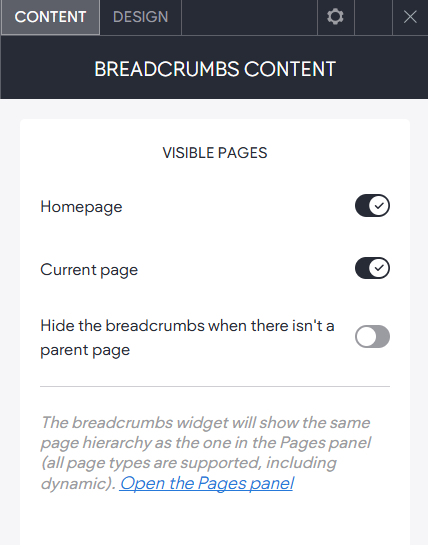
Select the items you want visible on the breadcrumbs. You have the following options:
- Home Page. Always show the home page in the breadcrumbs.
- Current Page. Show the current page in the breadcrumbs.
- Hide the breadcrumbs when there isn't a parent page. Enables breadcrumbs for all pages except the homepage or pages on the first level of navigation.
Design Editor
Right-click the widget and click Edit Design.
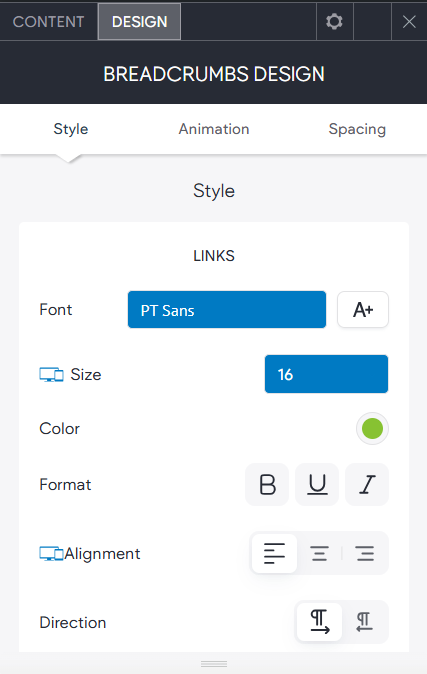
- Links. The font style of the breadcrumb text.
- Horizontal Spacing. The spacing between the breadcrumb items.
- Hover. The hover state of the breadcrumb links.
- Current Page. The font colour of the breadcrumb > current page.
- Divider. The colour, style and size of the divider icon.
- Folder. The style of a folder in the breadcrumb path. A Folder is a non-linkable item.