Icon Index Feature
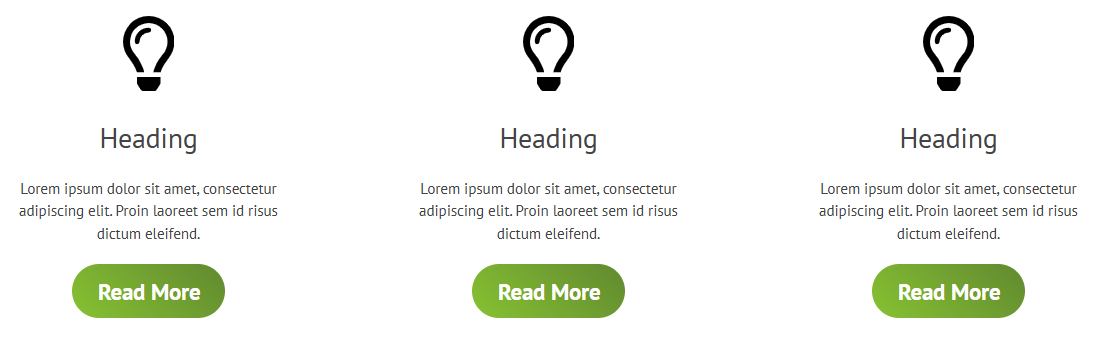
The Icon Index Feature widget creates a tile layout featuring an icon. Commonly used for home page features or index pages linking to subpages.
To add the widget:
- In the left panel, click Elements.
- Click and drag the Icon Index Feature widget into your site.
To learn more about adding widgets to your site, see
Add Widgets.
Content Editor
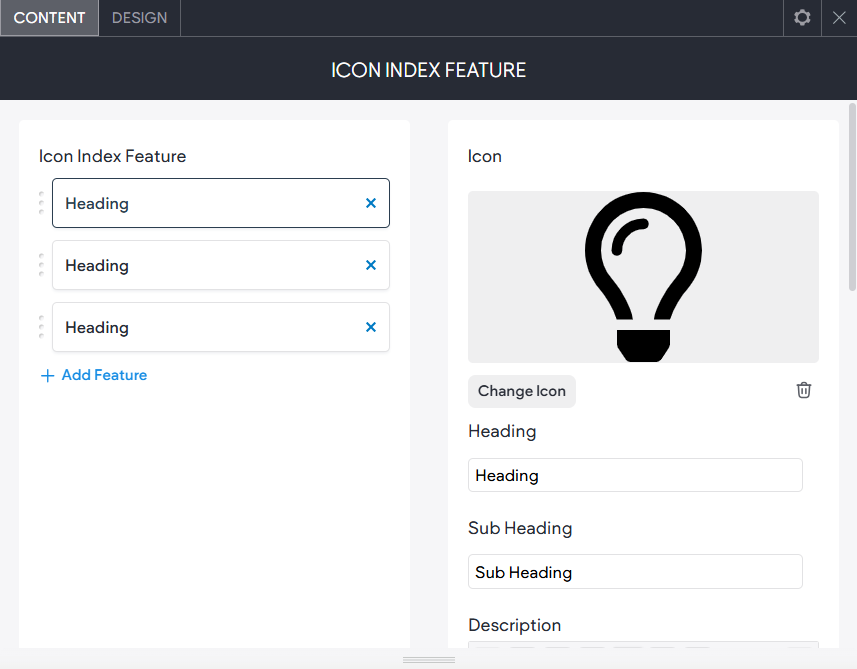
Right-click the widget and click Edit Content. Select one of the following:
- Icon Index Feature. When added, you will see three demonstration features that you can edit or remove.
- Icon. Change the icon from our library or upload your own.
- Header. Change the header text.
- Sub Heading. Change the sub heading text.
- Description. Change the description text.
- Button Text. The text on the button.
- Link. The link for the button.
- Add Link To The Image. The link you choose will also apply to the image.
- Show/Hide Items. Toggle switches to show/hide elements.
- Hide This Panel. Hide the feature panel on the website, but keep it on the feature list.
Design Editor
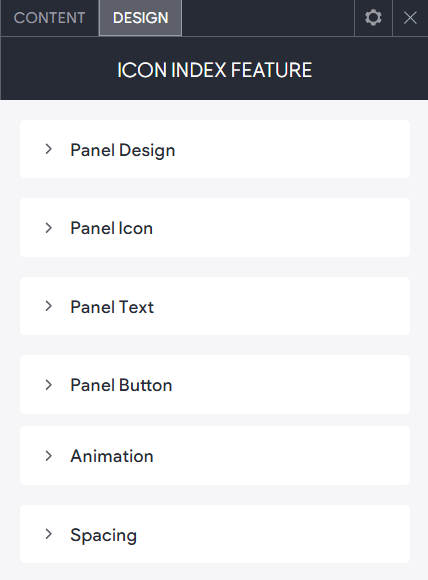
Right-click the widget and click Edit Design.
- Panel Design. Design and layout options for the background of the feature panels.
- Panel Icon. Design and layout options for the feature icon.
- Panel Text. The design, style, colours and margins of the text.
- Panel Button. The design, colours and styles of the button.